USER GUIDE
Tiếng ViệtHow to use Người Nhà
One idea per step, with screenshots. Người Nhà runs on iPhone, Android and the web — the same tree and the same controls everywhere, and your data syncs between devices. Where the app and the web differ, the guide says so.
1.Getting started
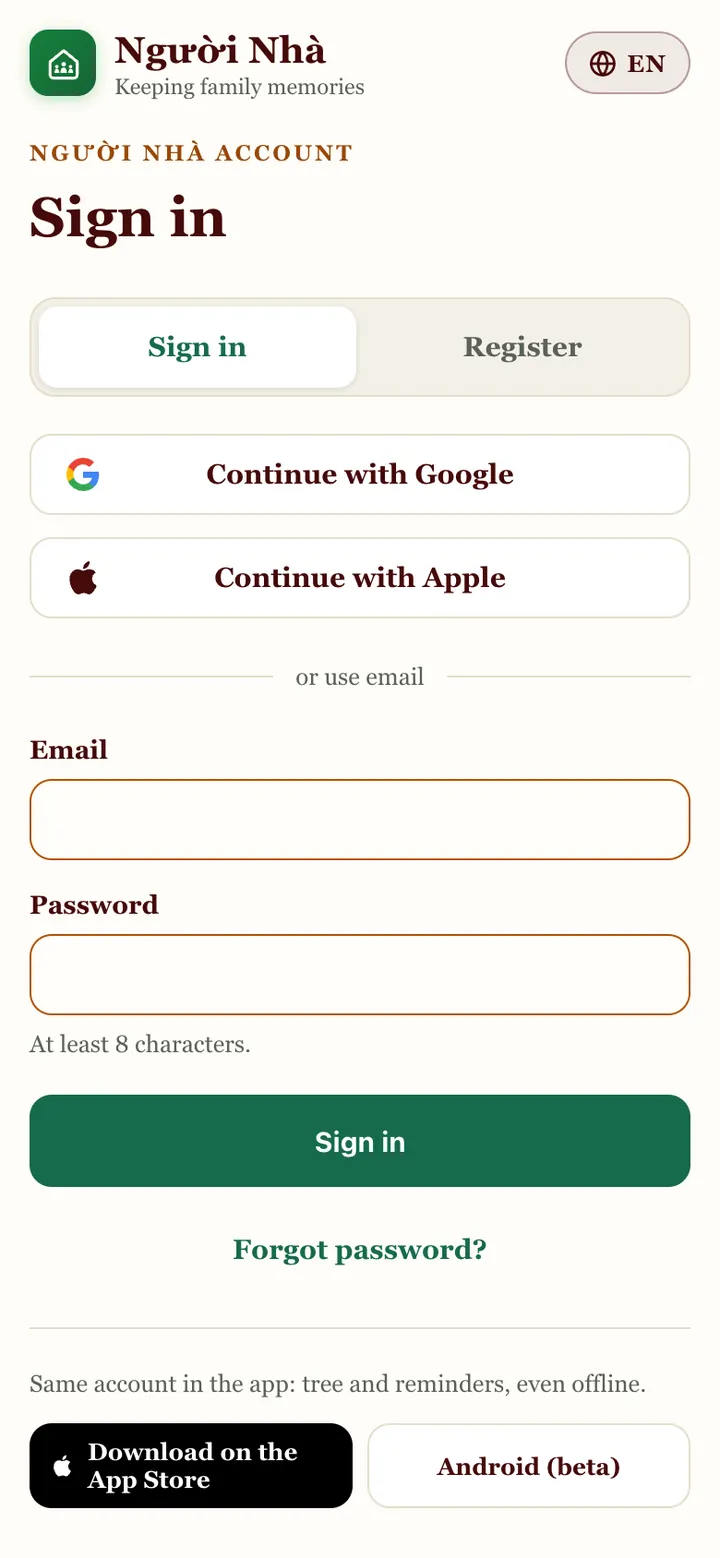
Install the app or open the web version, then sign in. You can look around first without an account.
iPhone, iPad
- Open Người Nhà on the App Store (or search “Người Nhà” in the App Store).
- Tap Get, then open the app.
Android
- Open Người Nhà on Google Play (or search for “Người Nhà” in Google Play).
- Tap Install, then open the app.
Android — prefer not to install? Use the web
- Open Chrome on your phone, go to app.nguoinha.com and sign in.
- Tap the ⋮ menu (top right) → Add to Home screen (or Install app).
- Tap Install → the Người Nhà icon appears on your home screen and opens like an app.
It uses the same account as the web version and the app.
Computer or any other device
Nothing to install: open app.nguoinha.com in a browser and sign in with the same account.
Signing in
- Continue with Google, Continue with Apple or Continue with Zalo — the quickest, no password to remember. The Zalo button is on the web now; the app gets it in the next update.
- Or use Email and a password (at least 8 characters). The first time, choose Create account.
- Forgot it? Tap Forgot password? under the sign-in button.
One account, several ways to sign in
- On the web, open Settings → Account and sign-in to see the methods attached (Google, Apple, Zalo, email).
- Add another one to the same account. Whichever you use afterwards, you see the same family.
- Using the Người Nhà Mini App in Zalo? On the web card tap to get a Zalo code (6 digits, valid 10 minutes), then type it into the link box on the Mini App's More tab.
Linking only works when the other account is still empty. If it already has a family or data, Người Nhà shows an error and never merges on its own, so nobody loses data. The last remaining sign-in method can't be removed.
Try it without an account
- In the app: tap Open offline data at the bottom of the sign-in screen to open a small sample tree.
- On a computer: open nguoinha.com/demo — a sample family tree to click around freely.
Invited to a family?
- On the “Draw your family tree” screen, tap Join (the “Invited to a family?” line).
- Paste the invite link or meeting code, or tap Scan QR code → Join.
Each family should share one tree. If a relative already started it, join theirs instead of making a new one.
2.Draw the tree and add people
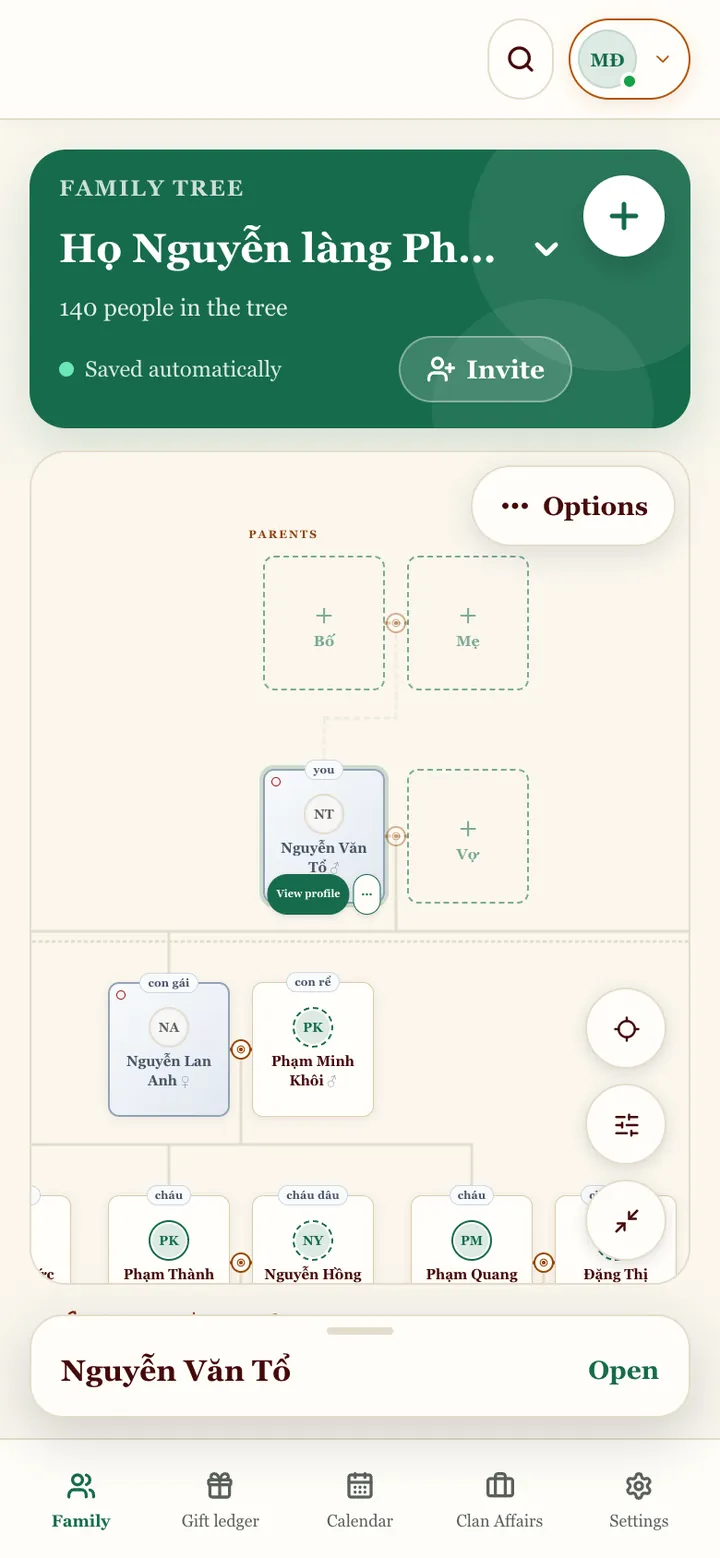
The tree starts with you. Around you are blank boxes marked “+” — tap one to add a person in that spot. The tree looks and works the same in the app and on the web.
Add a relative
- Open the Family tab. The first time, tap Start.
- Tap a blank box: + Father, + Mother, + Spouse, + Child or + Sibling.
- Type the full name, choose Male or Female, tap Add.
- Tap someone else on the tree — the blank boxes move around that person.
No blank boxes? Open the Display menu (below) and choose Edit tree (show add slots).
A person with several spouses
- Tap the person and add Spouse once more. They stand in the middle, each marriage has its own bar, and children hang from the bar of their own parents.
- Read left to right: the main spouse (the first one) comes first, then the other. Cards say Main wife, 2nd wife, Current husband…
- Divorced? Pick Former spouse when adding: the card says Former wife or Former husband and always stands after the current one.
- Adding a child to someone with several spouses: the app asks who the other parent is, so the child hangs in the right place.
- From the third spouse on, the card stands next to the tree (still labelled); open that person's profile to see every marriage.
What the app does for you
- Family name filled in: for a child, sibling or father, the family name (họ) of the father's line is already typed. For a mother or spouse you type it yourself.
- Quick add: a name is enough. To add a birth year, death date and more, tap More details.
- Same name: if the person may already be on the tree, the app asks — choose Use this person or Create anyway.
- A grandparent's siblings: add a sibling to someone who has no parents on the tree and the app adds an unnamed Parent of … box above them so the two sit side by side. Fill in the name later if you learn it.
- Deleted by mistake: tap Undo on the message that appears (for about 5 seconds).
- Large branches fold into a +N more box — tap it to open the branch.
Reading a card
- The small tag on the card's top edge is what you call that person: bác, chú, cô, dì, cháu, con dâu… (Vietnamese kinship titles stay in Vietnamese).
- Your own card — the person you chose under I am — is tagged you, in the app and on the web.
- People who married into the family have a dashed ring around their photo.
- Cards shrink to the rows you switch on under Settings → Shown on cards (photo, relationship, birth year, year of death, home name…).
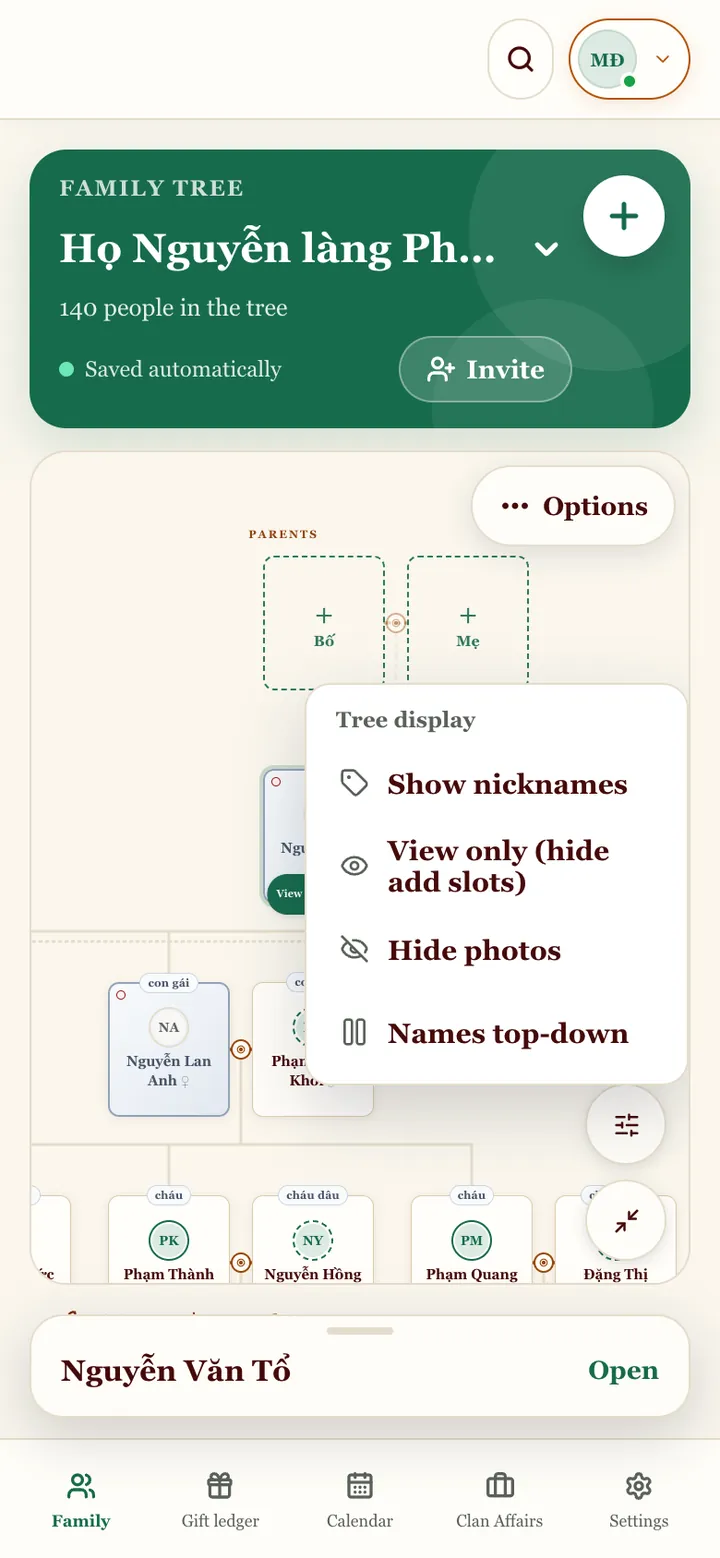
The Display menu
- Show nicknames ↔ Show real names — show home names instead of full names.
- View only (hide add slots) ↔ Edit tree (show add slots) — hide the “+” boxes when you just want to look, or hand the phone to a grandparent.
- Hide photos ↔ Show photos — smaller cards, more people on screen.
- Names top-down ↔ Names across — names written vertically, like a hand-copied family register.
On the web: the Display button (a sliders icon) in the corner of the chart. In the app: the round sliders button on the chart. Each item flips one way and back again:
The ••• menu on a card
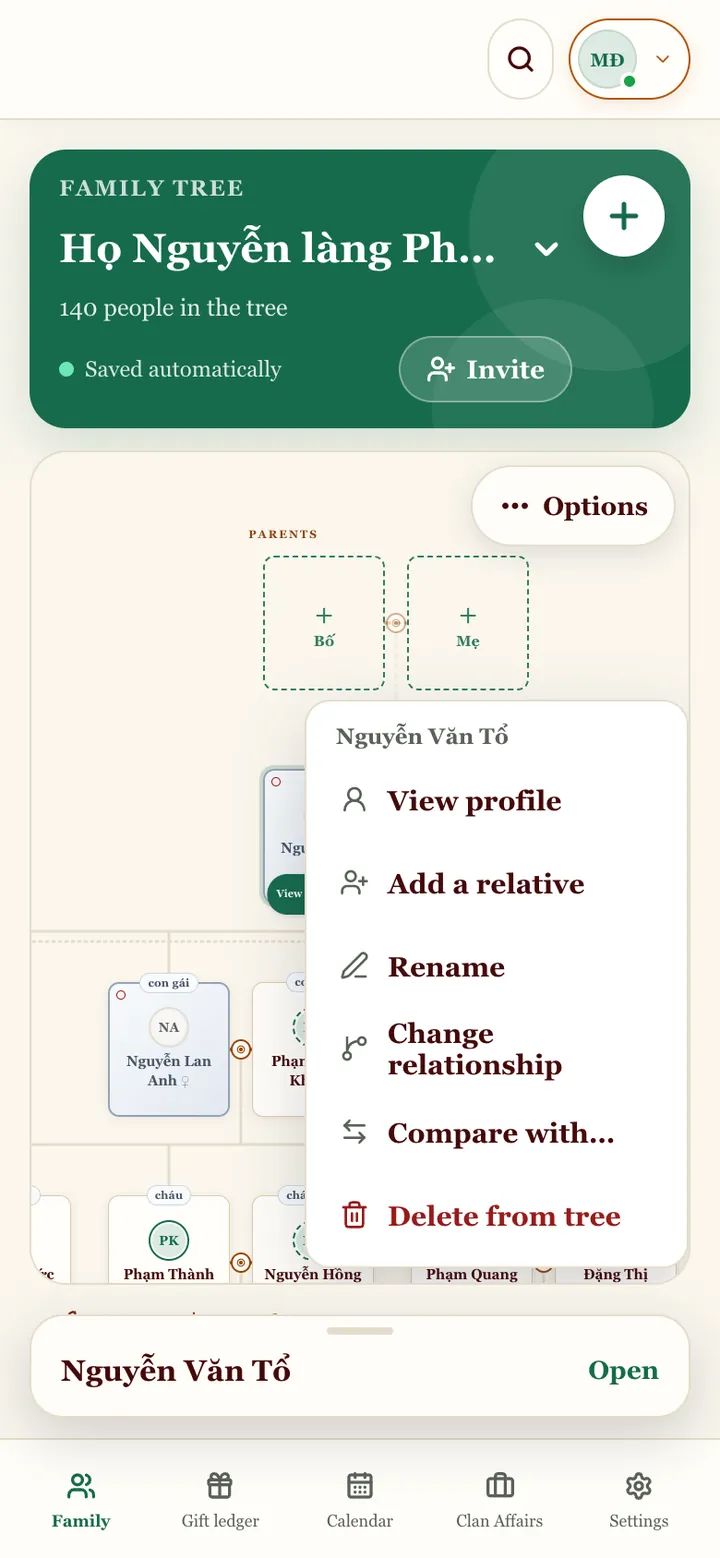
- Tap someone: their card shows a View profile button and a ••• button. In the app you can also press and hold the card.
- Tap ••• for View profile, Add a relative, Rename, Change relationship, Compare with… or Delete from tree.
The web also has Make the focus, which re-centres the tree on that person (titles still follow I am).
Moving around and finding people
- Drag with one finger to move, pinch with two to zoom.
- On the web: type in the Search name, dharma name… box at the top, press Enter and pick a result. On a phone, click the magnifier next to Options on the tree.
- In the app: tap the magnifier, type a name and tap a result (or Profile › to go straight to the profile).
- The tree jumps to that person and their card pulses a few times so you spot it at once.
3.Fan, pedigree and gaps views
Besides the tree, you can look at the family in several other ways — in the app and on the web.
Switch views
- On the web: the bar right above the chart — Tree, Fan, Pedigree, List, Gaps. On a phone-sized screen, tap Options → View the family as, where each view has a one-line description.
- In the app: tap the selected segment at the top of the Family tab to open View the family as, then pick a view (the app calls them Tree, Fan, Pedigree, List, Gaps).
What each view is for
- Fan: a person's ancestors spread out as a fan, father's side on one half and mother's on the other.
- Binary / Pedigree: every person splits into a father and a mother branch — all four sets of grandparents at a glance.
- List: everyone as an easy-to-read, searchable list.
- Gaps: who is still missing details, so you can fill them in bit by bit.
Filling the gaps
- In the app: filter by Parents, Birth year, Gender, Name, Living?. Each row has a fix button, such as Add parents or Add birth year.
- On the web: a list of people whose name or living/deceased status is unknown, or who aren't verified yet — click one to open the profile and fix it.
4.A person's profile
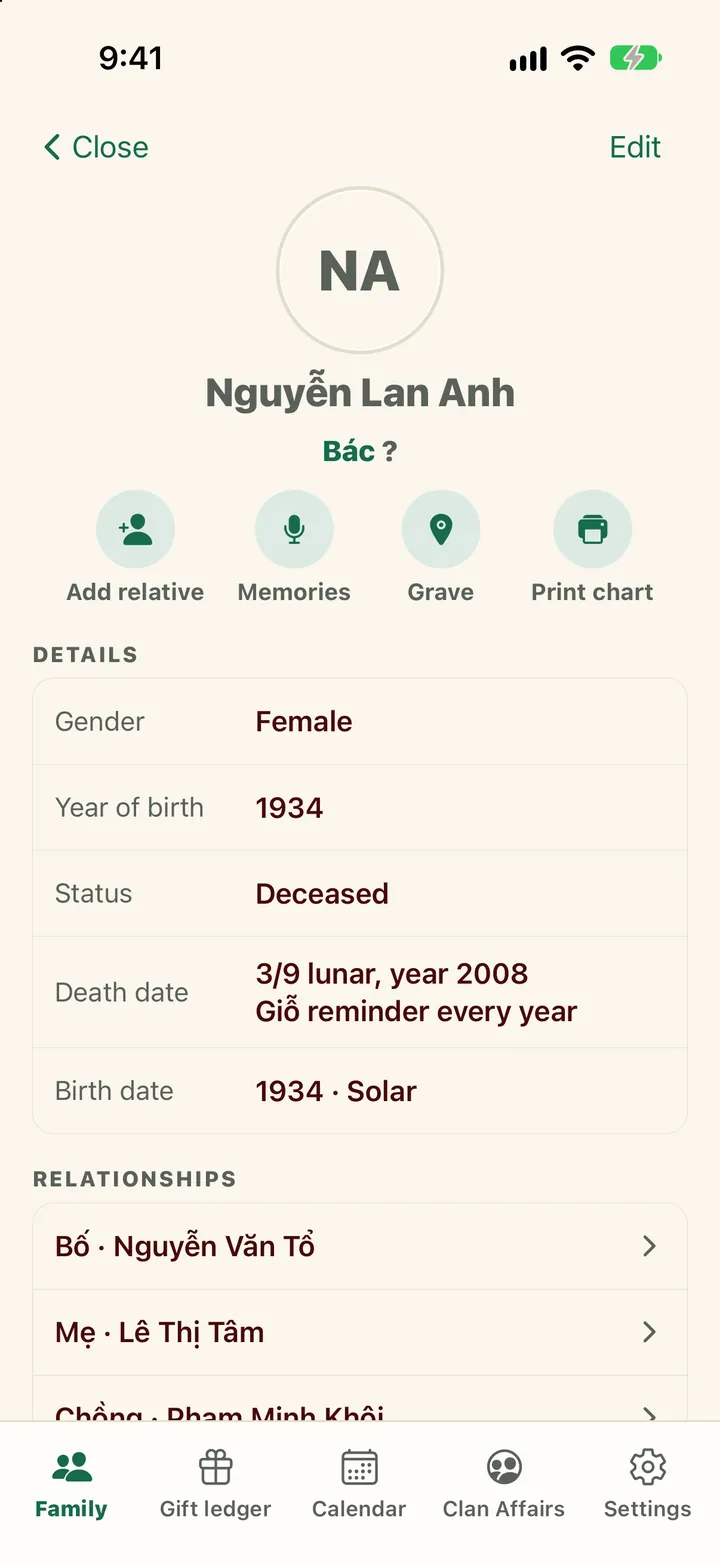
Tap a person on the tree, then View profile. It looks like a contact card on your phone.
- Under the name is how this person is related to you (for example “Bác”). For in-laws, a Call them line adds how to address them when you meet.
- Quick buttons: Add relative, Memories, and Invite to app for a living relative who has no account yet.
Edit details
- Tap Edit at the top.
- Change the name, gender, year of birth. For someone who has passed away, turn on Deceased.
- Tap Done to save.
Date of death (for giỗ reminders)
- In the profile, tap the row for adding a date of death.
- Choose Lunar (or Solar), then the day and month. There are Leap month and Only the year is known options.
- Tap Save date of death. The profile then says “Giỗ reminder every year”.
Date and hour of birth (for the Tử Vi chart)
- Tap Edit. If you only remember the year, type it in Year of birth (4 digits, 1000 to 3000).
- To record the full date, tap Add date of birth: the year you just typed is already filled in, so you only pick the day and month.
- Choose Birth hour (one of the 12 canh giờ such as Tý, Sửu, Dần…) or leave Not known, then tap Done.
- From the profile tap Tử Vi chart (in the app), or open Tử Vi and pick the person: the birth date, hour and gender are filled in, no retyping.
Home names, courtesy names, dharma names
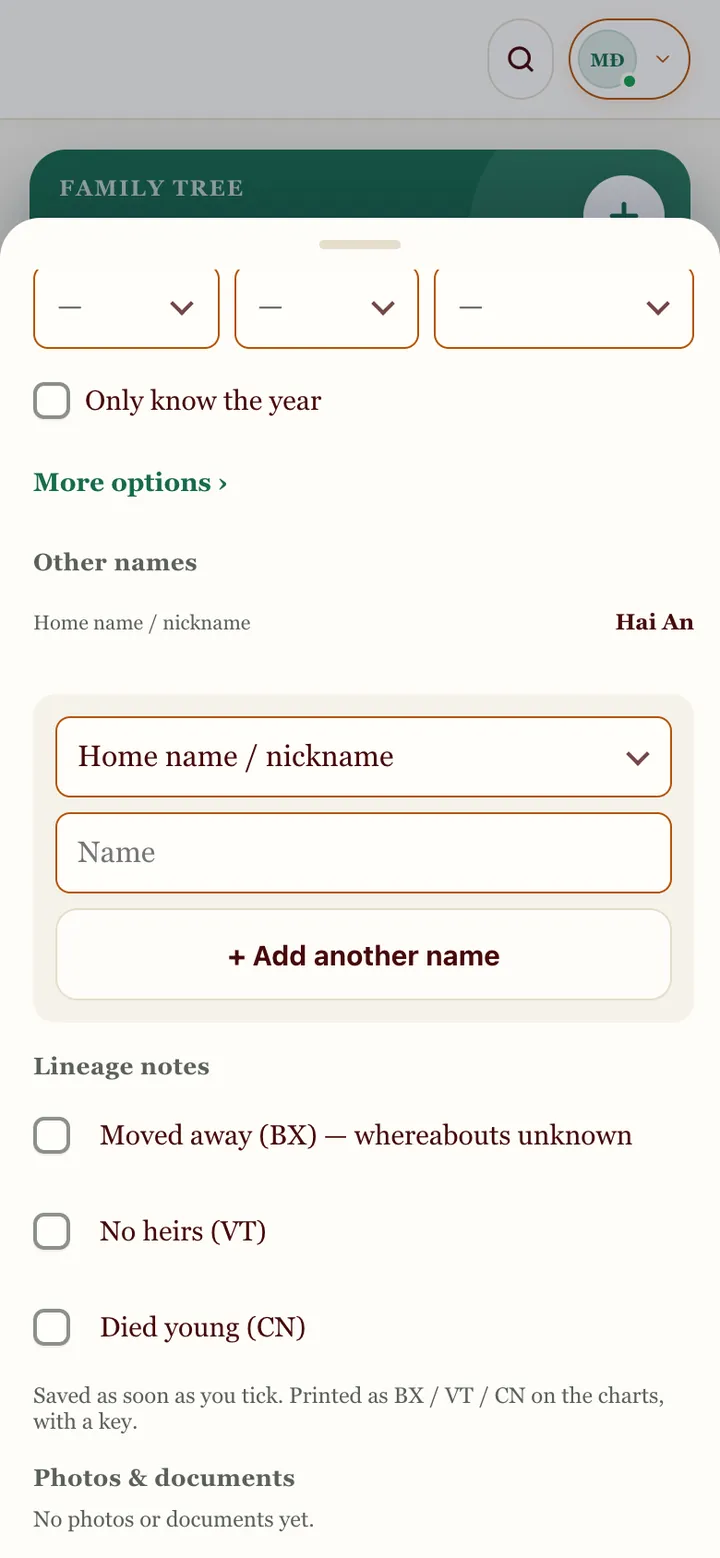
- In the app: tap Edit — the Home name / nickname field is right under the full name. Courtesy, pen, posthumous and dharma names go under More information → Religious name / alias: pick a Name type, type the name, tap Add name.
- On the web: Edit → More details → Other names: pick a kind (Home name / nickname, Courtesy name (tự), Pen name (hiệu), Dharma name, Posthumous name…), type it, click + Add another name.
- Nicknames show on the tree when you choose Show nicknames in the Display menu. Courtesy, pen, posthumous and dharma names can be printed on the family chart.
Lineage notes
- Under Lineage notes (in the extra details), tick what applies: moved away with whereabouts unknown (BX), no heirs (VT), died young (CN).
- They print as BX · VT · CN markers on the family charts, with a key.
Photo, memories and printing
- Tap the photo → Change avatar photo.
- Tap Memories → Add memory to write down a story, or record a grandparent telling it.
- To print just this person's branch: Print chart from this person on the web, Print chart in the app.
5.Automatic kinship titles
Vietnamese has a word for every relative — ông nội, cô, chú, dượng, chị dâu… Người Nhà works out what you call each person.
Tell the app who you are
- Go to Settings → I am.
- Pick your own name from the list.
- Back on the tree, every card shows what you call that person.
Fill in each person's gender (Male/Female) so the titles come out right.
In-laws
- Relationships by marriage are understood too: em vợ, anh rể, chị dâu, em dâu, con dâu, con rể, đồng hao (in the South: cột chèo), chị em dâu…
- People who married into the family have a dashed ring around their photo on the card.
- In their profile, Call them tells you how to address them when you meet.
Adjusting
- Settings → Terms by region: choose Northern, Central or Southern usage.
- Same on the web: Settings → I am, or open your own profile → This is me. Make the focus only re-centres the chart; it does not change the titles.
- A child recorded with only one parent, who has exactly one spouse? The app treats that spouse as the other parent, so cousins, aunts and uncles still get the right titles.
Compare two people
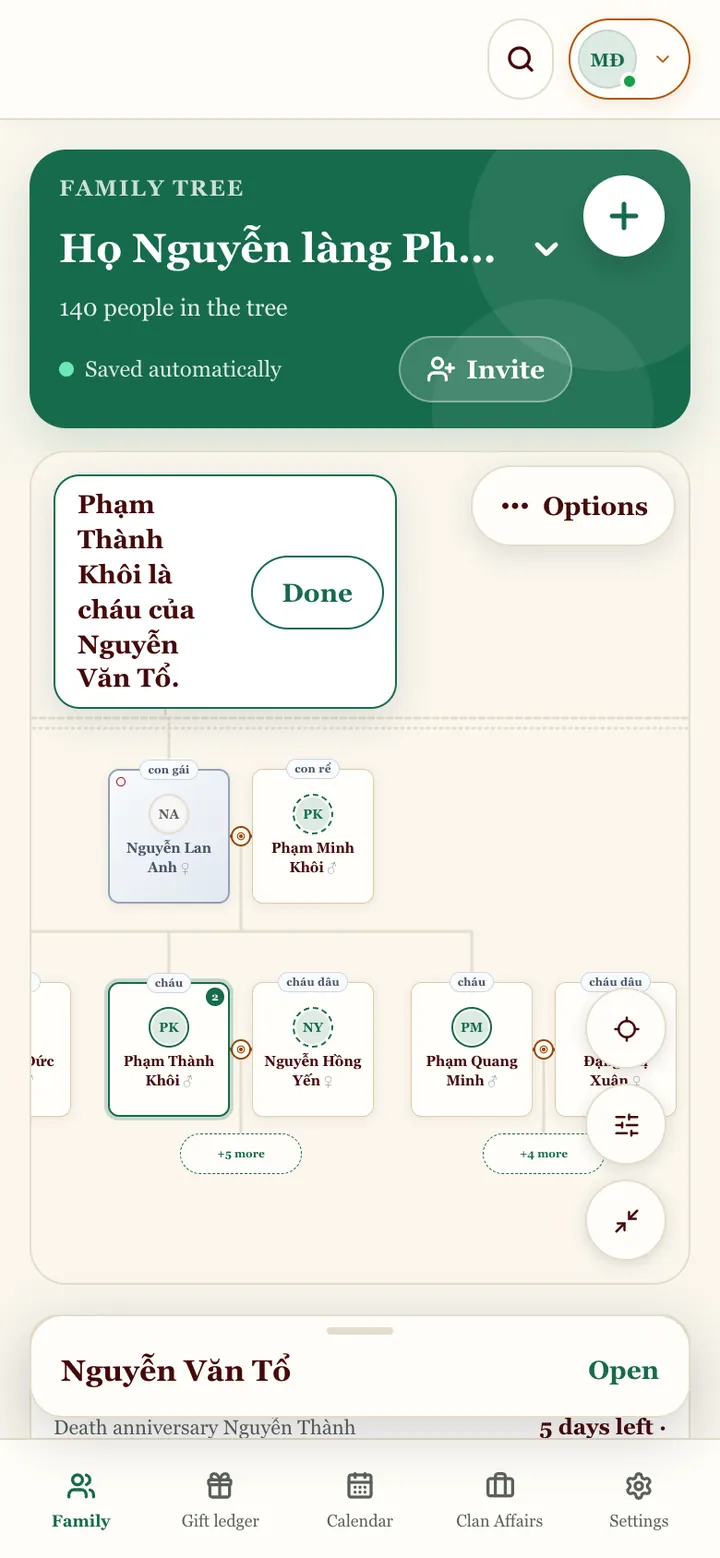
- On the first person's card, tap ••• → Compare with… (in the app you can also press and hold the card).
- Tap the second person on the tree.
- The answer appears at the top of the chart, for example “Hùng là bác của Sơn” (Hùng is Sơn's uncle). Tap Done to finish.
Works in the app and on the web.
6.Death anniversaries and the lunar calendar
Enter a date of death once and the app reminds you of the giỗ (death anniversary) every year. The Calendar tab shows today's lunar date, the giỗ, full moons and Tết coming up, and good days and hours.
Turn on giỗ reminders
- Enter the date of death in the person's profile (see the Profile section).
- Go to Settings → Reminders → turn on Notifications on this phone.
- Under Remind me, choose 7 days, 3 days, 1 day before or On the day.
To get them by email as well, turn on Daily reminder email.
The Calendar tab
- Under the Calendar title is today's lunar date, marked when it is an auspicious day.
- The calendar shows one week. Pull the small bar under it down (or tap the month name) for the whole month; swipe sideways for other weeks or months.
- Below it is a list by day: giỗ, full moons, first days, Tết, longevity celebrations and clan events ahead (see Clan Affairs). Tap a day on the calendar and the list jumps to it; tap Today to come back.
- Tap the can-chi line under a day for what suits it, the auspicious hours and the solar term.
- Tap + (or press and hold a day) → Add memorial or Add clan event. Swipe an event left to edit or delete it.
- The row of buttons under the calendar: Find a good day, Lunar ↔ solar, Tử vi, Element & compatibility and Tết.
- On the web the Calendar tab works the same: click + next to the title, or double-click, right-click or press and hold a day → Add memorial or Add clan event.
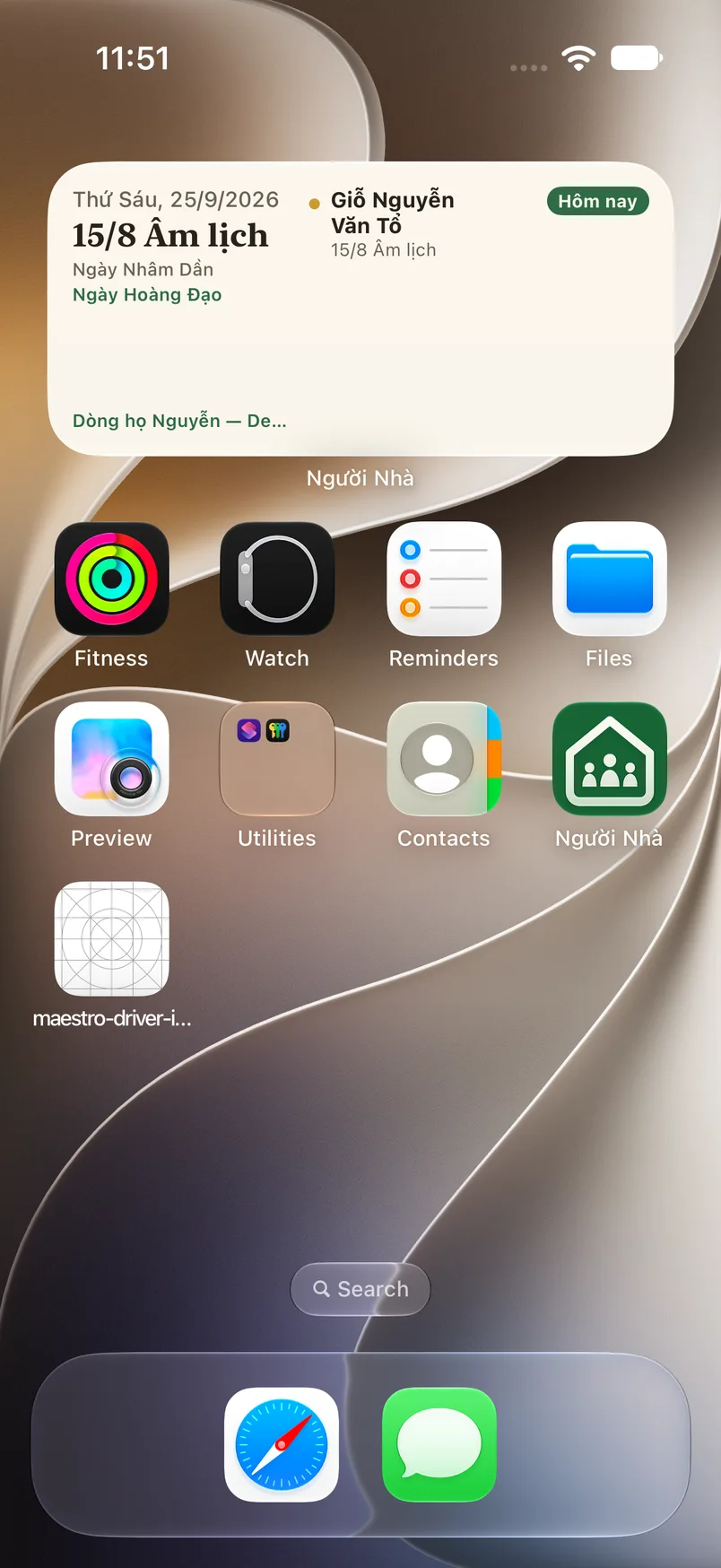
iPhone home-screen widget
- Open Người Nhà once so the widget has data.
- Press and hold the home screen → Edit → Add Widget.
- Find “Người Nhà”, pick small or medium → Add Widget. There is a small lock-screen version too.
The widget shows today's lunar date and giỗ and clan events in the next 30 days (in Vietnamese). Tap it to open the Calendar tab.
Put giỗ in Google Calendar or iPhone Calendar
- In the app: Settings → Reminders → Add to another calendar → choose iPhone Calendar, Google Calendar or Copy link (Outlook, others).
- On the web: Settings → reminders → Add to another calendar → Get calendar link → Open Google Calendar, Apple Calendar / Outlook or Copy link.
The calendar keeps giỗ and clan events right on the lunar calendar every year. The link is private to you — don't share it. This is available to families on a paid plan.
7.Remembrance days
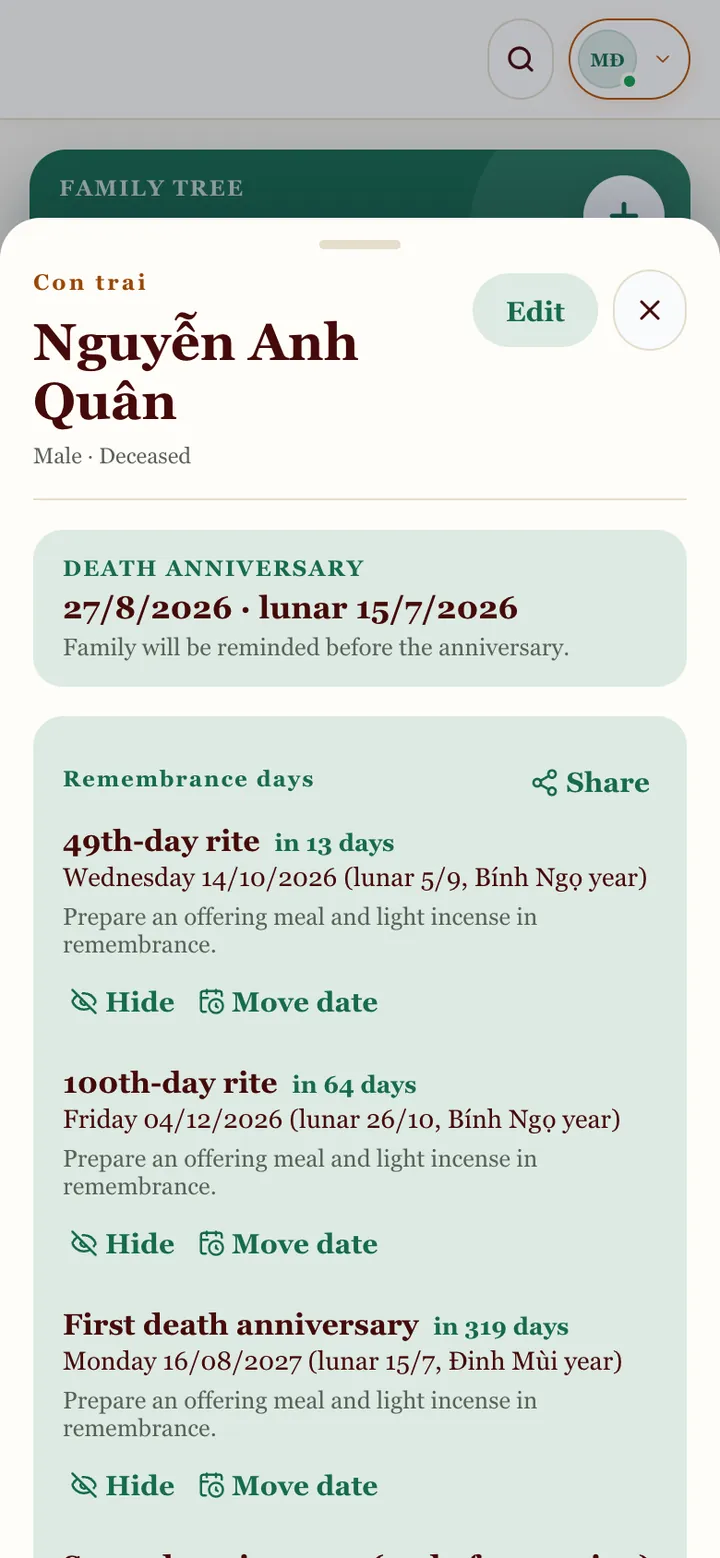
When someone has recently passed away, the app works out the memorial rites — the 49th day, the 100th day, the first and last death anniversaries… — following your family's traditions, and reminds everyone beforehand.
See the remembrance days
- Open the profile of the person who passed away and enter the full date of death (day, month and year).
- Under the death anniversary, a Remembrance days card lists each rite with its solar date, lunar date and how many days are left.
- Tap See all to include the days that have passed.
The card only shows while at least one day is still ahead.
Adjust it to your family
- Move date: pick the solar date your family will actually hold the rite, for example an earlier weekend.
- Hide a day your family doesn't observe. Restore puts back the calculated date.
- Heads of family, admins and record keepers can adjust it; everyone on the tree can see it.
Send it to the family on Zalo
- On the Remembrance days card, tap Share.
- On the web the image is downloaded — send it to your Zalo or Messenger group. In the app, pick Zalo in the share sheet.
Family traditions
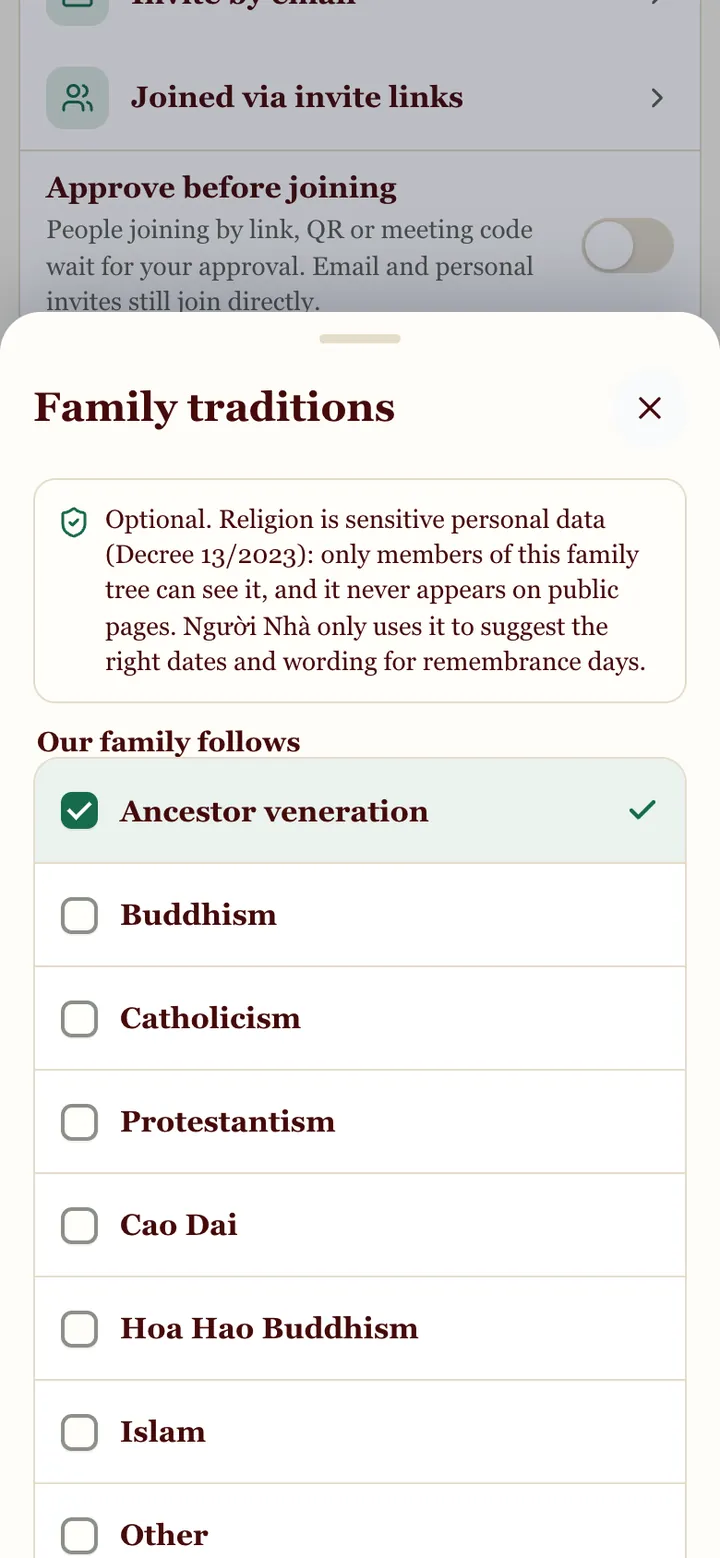
- Open Clan administration (web: under More; app: Settings → Family administration) → Family traditions.
- Tick the family's beliefs (several allowed): Ancestor veneration, Buddhism, Catholicism, Protestantism, Cao Dai, Hoa Hao Buddhism, Islam, Other or No religion.
- Choose whether yearly remembrance follows the Lunar calendar or the Solar calendar, and whether to Count the day of death.
- Ancestor veneration: the first-week offering, the 49th and 100th-day rites, the first death anniversary and the end-of-mourning anniversary.
- Buddhism: prayer rites for the first week, the 49th and 100th days, and the first anniversary.
- Catholicism: requiem Masses at 7 and 30 days, the first anniversary and All Souls' month (2 November). Protestantism: a one-year memorial.
- Catholic and Protestant families usually go by the solar calendar — unless you chose one yourself, the app switches to it.
Only the head of family and admins can change it. Religion is sensitive data: only people on the tree can see it, and it never appears on public pages.
How giỗ dates follow the lunar calendar, leap months included (in Vietnamese): Cách tính ngày giỗ âm lịch.
8.Printing and designing a family chart
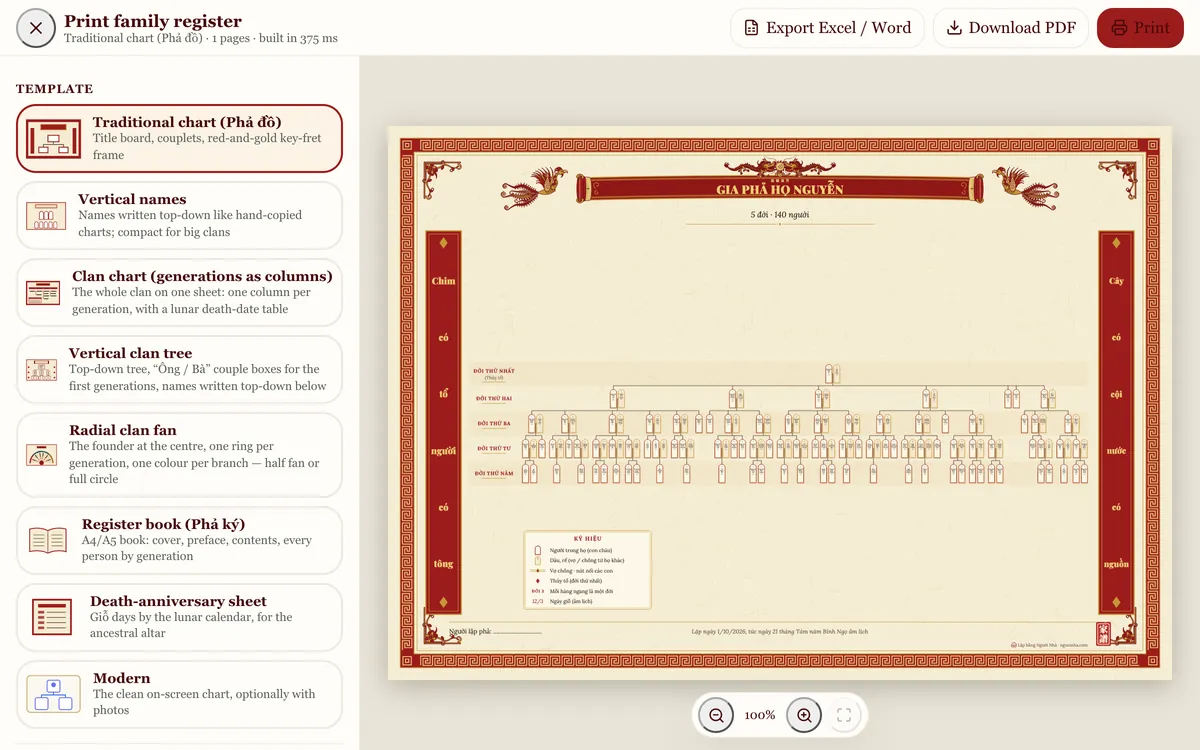
Turn the tree into a formal printed chart — to hang in the ancestral hall, print as a banner for the clan's memorial day, or bind as a book. It works on the web and right in the app.
Open the print studio
- On the web: on the chart, click Design chart or Print / Export PDF (on a phone-sized screen they're under Options).
- In the app: on the Family tab, tap the Design a family chart row or the printer button.
- To print one branch: open the profile of the person at its head → Print chart from this person (web) or Print chart (app).
Pick a template
- Traditional chart (Phả đồ) (the default): title board, couplets, one row per generation.
- Vertical names: names written top-down like hand-copied charts; compact for big clans.
- Clan chart (generations as columns): the whole clan on one sheet, with a lunar death-date table.
- Vertical clan tree: a top-down tree with later generations' names written vertically.
- Radial clan fan: the founder at the centre, one ring per generation, one colour per branch.
- Register book (Phả ký): an A4/A5 book with cover, preface, contents and every person by generation.
- Death-anniversary sheet: giỗ days by the lunar calendar, for the ancestral altar.
- Modern: the clean on-screen chart, optionally with photos.
Decoration
- Title frame: Scroll (cuốn thư) (the default), Red lacquer & gold, Carved board (hoành phi), Cloud cartouche or Simple. Font, size and colour of the title can be changed too.
- Decoration theme: Traditional (dragon and phoenix), Catholic, Buddhist or none.
- Background: Rice paper, Golden dó paper, Bronze drum, Sun rays or none (saves ink), plus an optional Patterned border (vạn key).
Frames, decoration and backgrounds apply to the large chart templates. The register book, death-anniversary sheet and Modern have their own look.
What goes on the print
- Who to include: Whole tree, Most recent generations or From one person down (optionally Include this person's ancestors).
- Card fields: add courtesy, pen and posthumous names, dharma or saint names, age at death, burial place and the BX · VT · CN markers — printed only when the profile has them.
- Stats: people, generations, each branch prints a summary in the footer.
Paper and banners
- A paper: Auto, A5, A4, A3, A2, A1, A0 — on one sheet or tiled over several.
- Large banner (cm): presets from 120×80 to 500×300, or Custom width and height from 50 cm up to 10 m, with a grommet margin and trim marks for the print shop.
Download and print
- On the web: Download PDF to take to a print shop, or Print to print straight away.
- In the app: tap Export PDF, then send it on Zalo, save it to Files or print it. The app builds the chart on the phone, no internet needed (profile photos do need internet).
Getting the register right before printing (in Vietnamese): Cách ghi gia phả and Cách tính đời và xưng hô.
9.Inviting relatives
A tree is more fun when the whole family looks at it and adds to it. There are three ways to invite.
Send a general invite link
- At the top of the Family tab, tap Invite.
- Pick Zalo, Messenger, Messages… to send the link.
Invite one particular person
- Open that person's profile → tap Invite to app.
- Send them the link. It works once and is tied to that person on the tree.
When they join, the tree manager confirms it once — then the tree recognises them and shows titles from their point of view.
The whole family at a gathering
- Go to Clan Affairs → Invite the whole clan → Create an invite code.
- Choose what joiners may do: Member (view and add information) or Guest (view only).
- Everyone scans the QR code or types the code. It expires after 24 hours; tap Stop code when you're done.
What does the invited person do?
- Open the invite link (or tap Join in the app and paste the link / scan the code).
- Sign in or create an account.
- Pick who they are in the family and send the link request. The manager taps Approve under Pending.
10.Clan Affairs
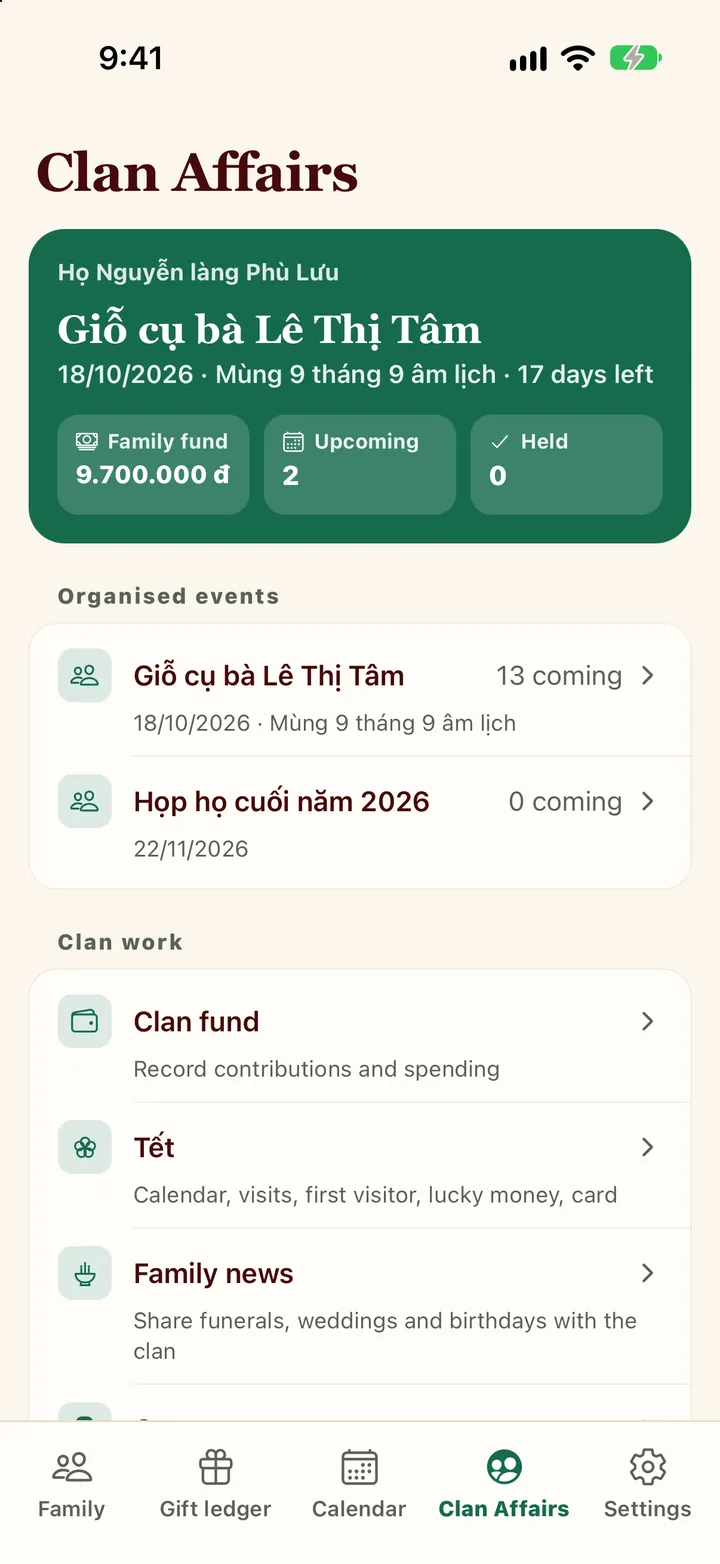
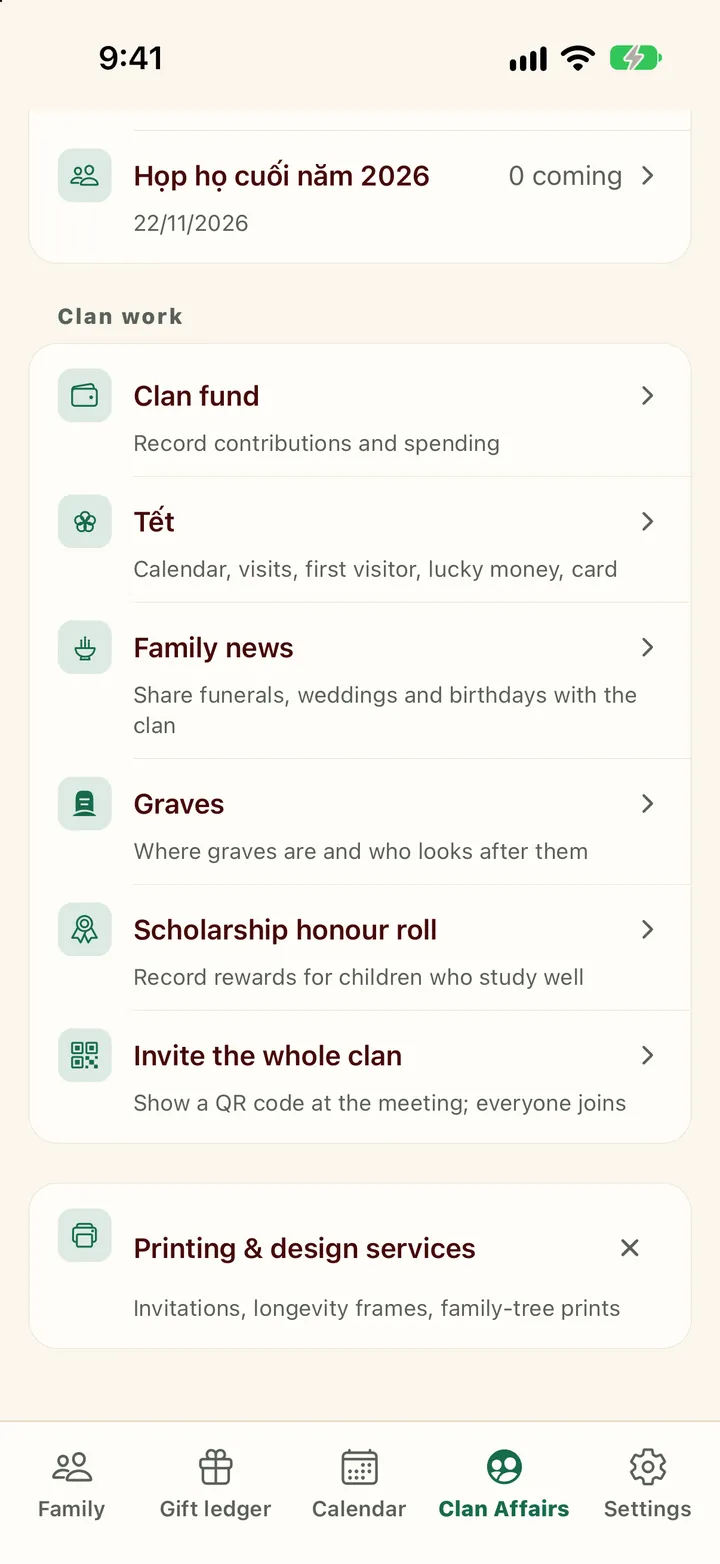
The days the family needs to remember are under Coming up on the Calendar tab, worked out on the lunar calendar. The Clan Affairs tab keeps the gatherings you organise and the clan's shared work. You need to be signed in.
Coming up
- Each giỗ (memorial day, from the lunar date of passing on the person's profile), the full moon and first day of each lunar month, Thanh minh, Tết, longevity celebrations and clan events from the calendar.
- Each row shows the lunar and solar date and how many days are left. Tap Show more to see the whole year.
- No giỗ yet? Open a grandparent's profile and add the date of death — the app works out the giỗ every year.
Organise a giỗ and invite everyone on Zalo
- On the Calendar tab, tap a giỗ under Coming up → Organise the giỗ (or Organise the celebration, Organise a grave visit). The app opens Clan Affairs with the form filled in.
- Fill in the time, address, host and what to bring → Save and get the invite link.
- Tap Send invitation to share the link on Zalo, Messenger or Messages.
- Whoever opens the link can reply coming / maybe / not coming and pick what they'll bring — no app to install, no account needed.
The event you created appears under Gatherings: see who replied and who brings what, add replies taken by phone, or tap Remind again before the day.
Clan work
- Clan fund: a public ledger with VietQR contributions (see Clan fund).
- Gift ledger: your private record of wedding and funeral gifts (see Gift ledger).
- Family news: announce funerals, longevity celebrations and weddings to everyone.
- Graves: graves on a map and who looks after them (see Graves).
- Scholarship honour roll: recognising children's school achievements year by year.
- Invite the whole clan: a QR code for a family gathering, and approving who joins.
- Tết: the days of Tết, New Year visits, first visitor, lucky money, greeting card (see Tết with the family).
Printing & design services
At the bottom of Clan Affairs, Printing & design services lets you order invitations, longevity frames or a printed family tree. Enter the quantity, the date you need it and a phone number → Send print request, and the print shop will get back to you.
The clan agreements now live in Settings in the app and Clan administration on the web. Element & compatibility has moved to the Calendar tab.
11.Tết with the family
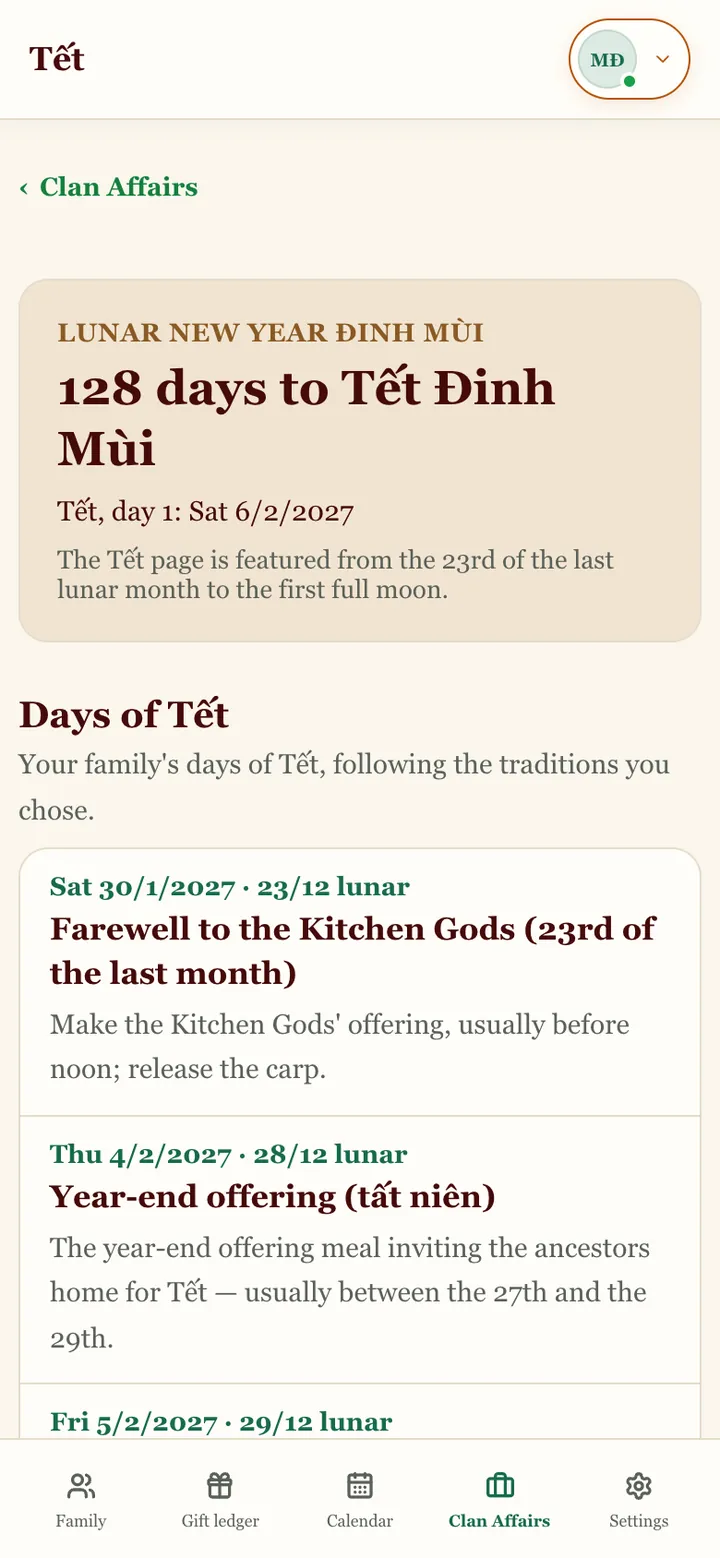
The Tết page puts your family's Lunar New Year in one place: the days of Tết, New Year visits, the first visitor (xông đất), lucky money and a greeting card. From the 23rd of the last lunar month to the first full moon, Clan Affairs and the Family page show a countdown to Tết.
Open the Tết page
- On the web: Clan Affairs → the Tết tile, or click the countdown banner during the Tết season.
- In the app: Clan Affairs → the Tết row, or the Tết card on the Calendar tab. The app splits it into five tabs: Tết calendar, New Year visits, First visitor, Lucky money, Greeting card.
- On a Tết day under Coming up, tap Open the Tết page.
The days of Tết
- The coming Tết worked out on the lunar calendar: the Kitchen Gods' farewell (23rd of the last month), the year-end meal, New Year's Eve, days 1 to 3, the farewell offering, khai hạ (day 7) and the first full moon.
- What each day says follows your Family traditions: families who burn incense get the offerings; Catholic families get the New Year's Eve Mass and a day-1 Mass for peace; Protestant families get the New Year's Eve prayer meeting.
- The farewell offering (hóa vàng) defaults to day 3. If your family does it later, change it under Our farewell offering: (app: Which day is your family's farewell offering?), days 3 to 7. The choice is saved on your device only.
- Tết days are reminded along with giỗ — by phone notification, the daily reminder email and Add to another calendar — following the reminder settings you already have.
New Year visits
- Tell the app who you are: on the web pick I am on the page; in the app set I am in Settings first.
- The app lists the homes to visit: your father's side, then your mother's side, then your spouse's family — elders first. It suggests day 1 for your father's side and day 2 for your mother's. For a married woman it suggests day 1 for her husband's family and day 2 for her own (father's side, then mother's); each stop's day can be changed.
- Tick each home you've visited: on the web the boxes under Visited:, in the app the circle at the start of the row.
- To reorder or drop someone: the web has up/down buttons and Hide from the list; in the app tap Arrange. You can add each home's address and phone number.
The list, ticks and notes are saved on your device only — nobody else in the family sees them.
First visitor (xông đất)
Pick the head of household (or type their birth year) and the app ranks relatives with a known birth year by can chi and elements, flagging any age that clashes with New Year's Day. For reference only — not advice.
Lucky money
- Choose Gave to or Received from (app: I gave / I received), then the person and the amount.
- Tap Save (app: Save to the book).
Each one goes into your Gift ledger under Tết · lucky money — private, only you see it.
Greeting card
- Pick a Decoration: Apricot blossom, Peach blossom or bánh chưng.
- Pick a ready-made Greeting or write your own, and sign it with the family's name.
- Tap Share the card and send the image to the family's Zalo group.
12.A transparent clan fund
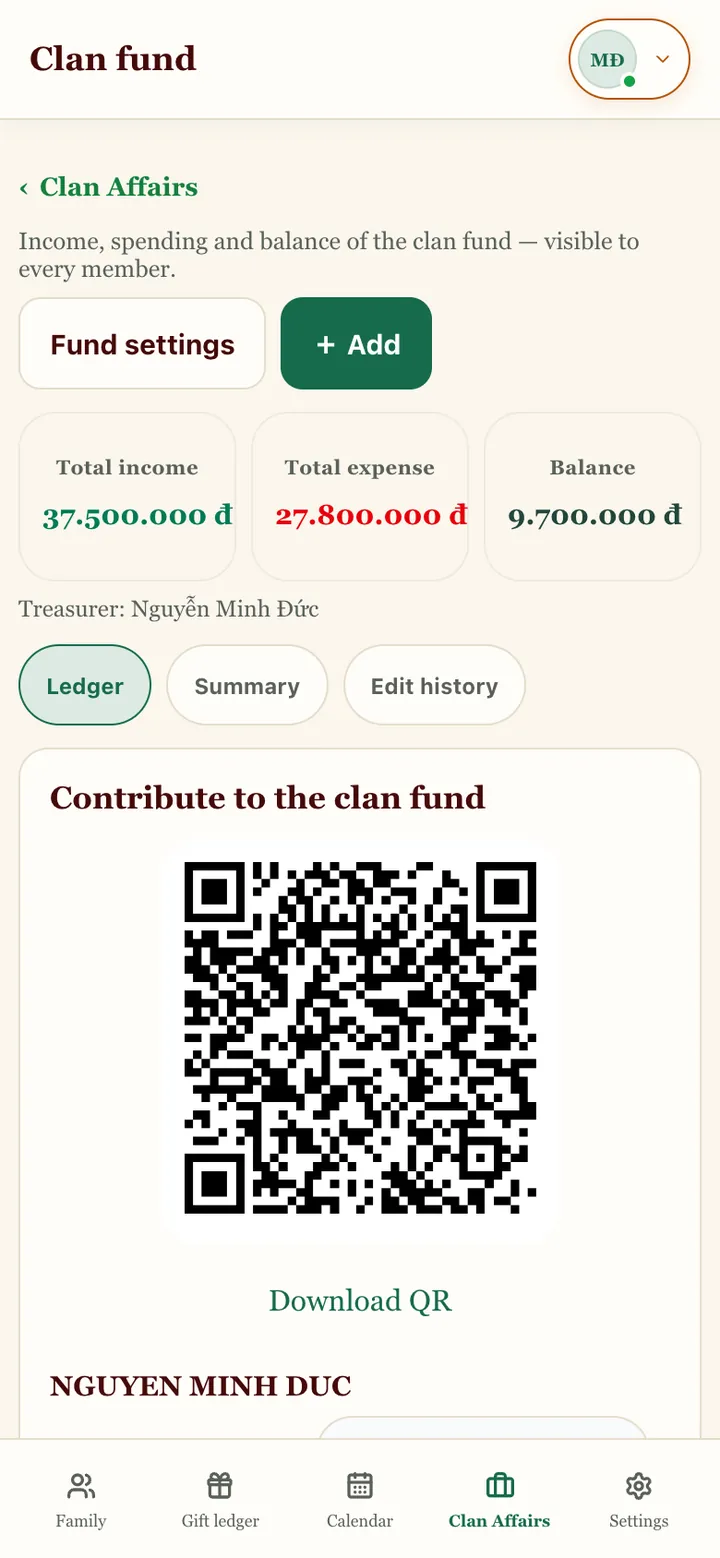
A public ledger for the whole clan: everyone on the tree sees income, spending and the balance. Người Nhà only keeps the books — money goes straight into the fund's bank account; the app never holds or collects it.
Treasurer: set up the receiving account
- Go to Clan Affairs → Clan fund.
- On the web click Fund settings; in the app tap Fund account & treasurer.
- Enter the bank's 6-digit BIN, the account number, the account holder and the transfer note → Save account.
- The head of family or an admin picks the Treasurer.
The account number is encrypted when saved and shown only to clan members so they can scan the VietQR code.
Members: contribute
- On the web: the Contribute to the clan fund panel in the Ledger tab. In the app: tap Contribute to the fund.
- Enter the amount, then scan the VietQR code with your banking app (or copy the account number and transfer note).
- To keep your name private: on the web tick Show me as “Anonymous” in the ledger; in the app turn on Anonymous.
- After transferring, tap I've transferred (app: I've made the transfer). It waits for the treasurer to confirm.
Treasurer: confirm and record
- On the web, Awaiting confirmation has Confirm and Reject buttons. In the app: Confirm received or Not received.
- Pending money isn't counted in the balance, and only the treasurer and the sender see it.
- The treasurer records other income and spending with Add, with a receipt photo if there is one.
Everyone can check
- Edit history (app: History): every entry, edit and deletion is logged.
- Summary by year or by month → Download summary image (for Zalo) on the web, Share summary in the app.
- Anonymous entries: others see the amount but not the name; the treasurer still sees it.
Running the fund and reporting to the clan (in Vietnamese): Quản lý quỹ họ minh bạch.
13.Gift ledger
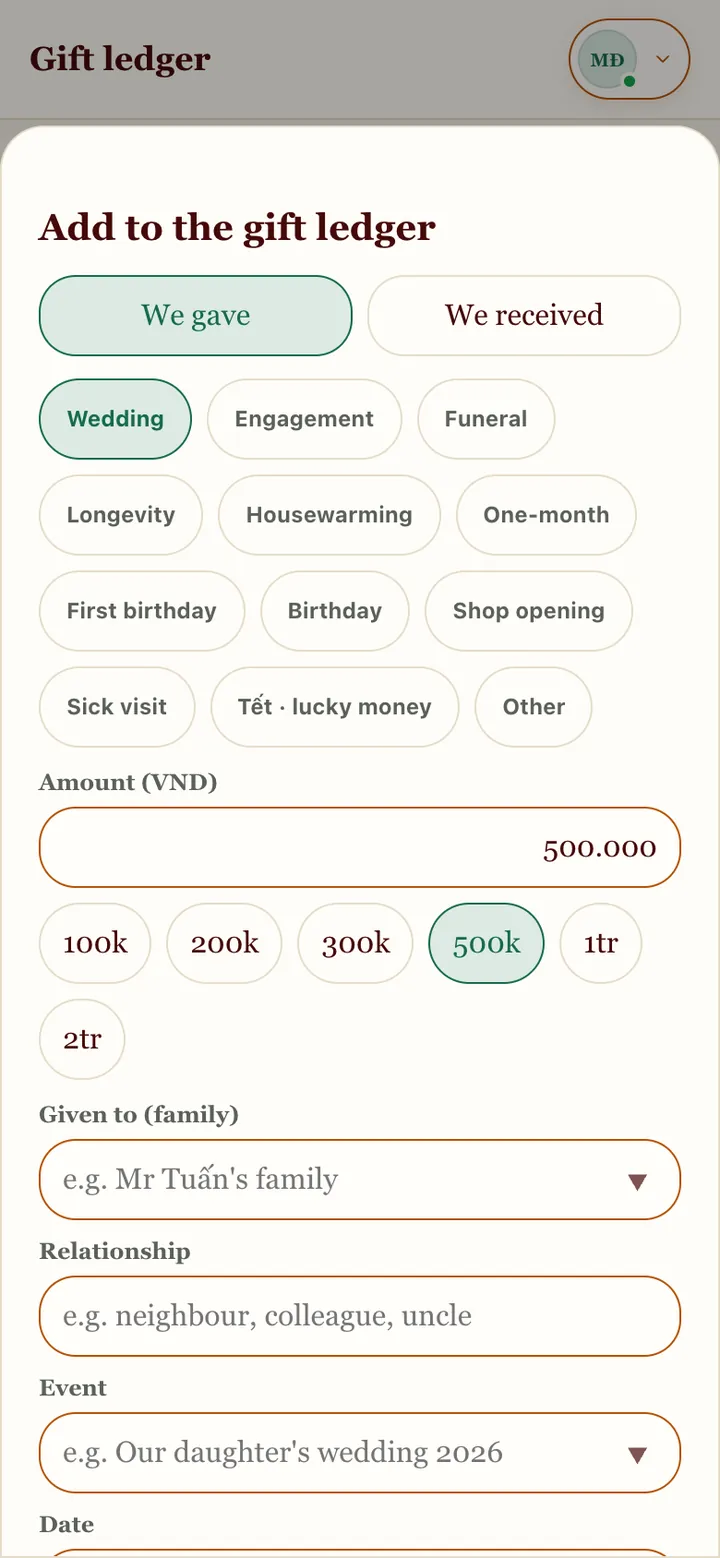
A record of the money your household gave and received at weddings, funerals, longevity celebrations — so you know how to return the favour. It's private: only you see it, not the clan or its admins.
- Open the Gift ledger tab (web: Gift ledger in the sidebar).
- Tap Log a gift, or tap a family's name and log it there — it reminds you what they gave you last time.
- Choose We gave or We received, and the occasion: wedding, funeral, longevity, housewarming, Tết…
- Enter the amount or gift, the family and the date → save.
- One line per family: what you gave, what you received, the last occasion. Filter by group (neighbours, colleagues, classmates, relatives…) or search by name.
- Coming up: note their upcoming occasion from an invitation and get reminded the evening before; or plan your own (a wedding, a housewarming) to invite guests, then log who came, what they gave, and the costs.
- Each year's summary: what you gave and received this year, by occasion, against last year.
- Export to Excel: Export CSV (Excel) on the web, Export to Excel (CSV) in the app.
- On a Family news post, tap Add to gift ledger to record it quickly.
- In the app the ledger is stored on the phone and works offline; it syncs with the web when you're back online.
14.Wedding invitations (free)
Design a wedding invitation, send each friend, colleague, teacher or neighbour their own link, and see who is coming. Relatives are usually told in person, so there is a separate Báo họ hàng (tell the relatives) card. Completely free: no trial, nothing to pay to unlock a feature. The tool works on the web for now (app.nguoinha.com), including in a phone browser. The person making the invitation signs in; guests need no account. The tool's buttons are in Vietnamese; each one is translated here.
Open the tool
- Sign in on the web, then open Thiệp mời cưới (wedding invitations): on a computer in the sidebar (under Khác, “More”), on a phone go to Settings and pick Thiệp mời cưới under Khác.
- Tap Tạo thiệp mới (new invitation).
Design the invitation
- Tab Thiết kế (design) → Cặp đôi & hai họ (couple and both families): choose Loại thiệp (type of invitation), then enter the groom, the bride and both sets of parents.
- Ngày & nơi (date and place): pick the wedding date in the solar calendar and the lunar date appears below it. Gợi ý ngày tốt (suggest a good day) lists auspicious days for a wedding, for reference only.
- Several events (vu quy, thành hôn, reception…)? Tap Thêm buổi lễ (add an event), up to 4. Each has its own date, time, venue and map link.
- Lời mời & mừng cưới (invitation text and gift): choose the wording, phone number and dress code; add a VietQR for wedding gifts if you wish (optional). Turn on Hỏi khách về món ăn (ask guests about food) if the restaurant needs to know.
- Giao diện & ảnh (look and photo): pick one of 26 Mẫu thiệp (templates: traditional, luxurious, floral, modern; the Hồng Phúc template is sold separately and needs an unlock code to publish) and add a photo of the couple if you like. The photo is only processed on your device.
- Tuỳ chỉnh (customise): lightly adjust the chosen template and the card changes at once. Màu sắc (colours) offers a few colourways and Màu nhấn (accent colour), only on templates that suit them; templates with their own painted art keep their original colours. Phông chữ tên cô dâu chú rể (font for the names) previews each font with your own names; Hiển thị (show) hides the double-happiness character, the directions QR or the lunar date line; Cỡ chữ thông tin (size of the info text) is Nhỏ (small), Vừa (medium) or Lớn (large); Khung ảnh (photo frame) lets you drag or pinch to move and zoom the photo inside the template's own frame. Not happy? Tap Hoàn tác (undo) or Đặt lại mặc định (reset to default).
Want the card as an image to post or print? Tap Tải PNG dọc (vertical, for Stories), Tải PNG bài đăng (post) or Tải PDF A5.
Send it to guests
- Open the Gửi khách (send to guests) tab and tap Tạo link gửi (create link). You get one short shared link (like nguoinha.com/t/…). Paste it into Zalo or Facebook and the couple's names and the card image show up in the preview.
- Want a personal invitation for each guest? Under Link riêng cho từng khách (a link per guest), pick guests Từ Sổ đi lại (from your Sổ đi lại: friends, colleagues, neighbours; relatives are not listed), Thêm tay (add by hand) or Dán danh sách (paste a list), choose how to address them (Anh, Chị, Bạn, Cô, Chú, Thầy…), then create the links.
- Tap Sao chép (copy) or Gửi (send) for one person, or Sao chép tất cả (copy all) to get the whole “Name — link” list.
- Someone has not answered? Tap Nhắc (remind) for a ready-made reminder with their link. The app only copies the reminder; it never sends messages for you.
See who is coming
- Open the Phản hồi (responses) tab: the totals for Sẽ đến (coming), Không đến (not coming), Chưa trả lời (no answer) and Tổng số người (total people), with guests' messages. With several events you see who attends which; with the food question on you see who is vegetarian or avoids something.
- Tap Ghi sổ (record) next to a guest to pre-fill their wedding gift in your Sổ đi lại (no amount yet, you add it later).
- Tap Tải CSV to open the list in Excel.
Guests can change their mind on their own link; you see their latest answer.
Telling the relatives
Relatives are usually told in person (a call, their own Zalo group). The Báo họ hàng tab writes a ready-made message with the solar and lunar dates, the venue and the schedule of ăn hỏi, vu quy and thành hôn, for you to paste into the family group.
Privacy and limits
- Only people with the link can open the invitation. The link is an unguessable code and does not appear on Google.
- Each account can make up to 10 invitations, with up to 300 guests per invitation.
- The link expires 30 days after the wedding. Tap Đổi ngày hết hạn (change expiry date) to make it sooner or later.
- Đổi link (change link) next to a guest creates a new link for that person; the old one stops working.
- Tắt link (turn off the link) or Xóa thiệp này (delete this invitation) removes the sent invitation, every personal link and every answer at once, and cannot be undone.
15.Free tools on the web
These tools open in a browser, need no account and are free. They do not replace the family tree: create a tree to keep things for the whole family. The pages are in Vietnamese.
Kinship terms and giỗ dates
- Kinship lookup: choose a chain of relationships to learn what to call bác, chú, cô, cậu, dì, anh rể, chị dâu… in the Northern, Central or Southern way, and what they call you.
- Kinship challenge: a 10-question quiz with a shareable score. Whole-family table: a table for both families, as PNG or PDF. Tricky situations: wives of brothers, step-parents, adoptive relatives…
- Giỗ date calculator: first and last anniversaries, 49 and 100 days, a death in a leap month or on the 30th, with a .ics calendar export.
- Baby's first-month and first-year dates: converts the birth date to the lunar calendar and finds the customary đầy tháng and thôi nôi days.
- Lunar calendar: convert dates, auspicious days, lucky hours. Zodiac by birth year, couple compatibility (reference only), Tử Vi and baby names.
Wedding season
- Wedding blessings: a library of wishes by sender (friend, colleague, relative, boss, teacher) and tone, with a copy button.
- Invitation message composer: a Zalo or Messenger message with the lunar date, addressing each person properly.
- 12-month wedding plan: tasks by milestone, with progress saved on your device.
- Wedding budget: each cost with who pays (groom's side, bride's side or the couple), totals per side.
- Wedding guest list: guests per side, who is coming, table count, CSV download.
- Wedding announcement image: an image to post as a story, downloaded as PNG, nothing uploaded to a server.
- Want an invitation with a personal link for each guest? See wedding invitations and the chapter just above.
16.Graves and the map
Record where each grave is, which way it faces and who looks after it — and see all the clan's graves on a map when you visit them.
Add a grave
- Go to Clan Affairs → Graves → Add.
- Choose the person, the branch, and describe the location in words.
- Under Map location: Pin my current location while standing by the grave, or Drag the pin on the map, or Paste a Google Maps link → Use location.
- Add the facing direction, cemetery, grave type, headstone text and photos, then save.
Viewing and visiting
- Switch to Map to see every pinned grave. Open one → Open in Google Maps or Open in Apple Maps for directions.
- Assign someone to tend each grave.
- The app can Measure with compass to record which way a grave faces.
- The map uses OpenFreeMap, so it needs internet. Everyone on the tree can view; heads of family, admins and record keepers can add and edit.
Preparing a grave visit (in Vietnamese): Tảo mộ tiết Thanh minh.
17.People in the gift ledger
Friends, neighbours and distant relatives who don't belong on the shared tree now live in the Gift ledger tab. Only you can see it.
- Open the Gift ledger tab.
- Tap Add person, or Add from Contacts to pick from your phone's contacts.
Your contacts are read on your phone only and are not uploaded anywhere.
18.Text size and appearance
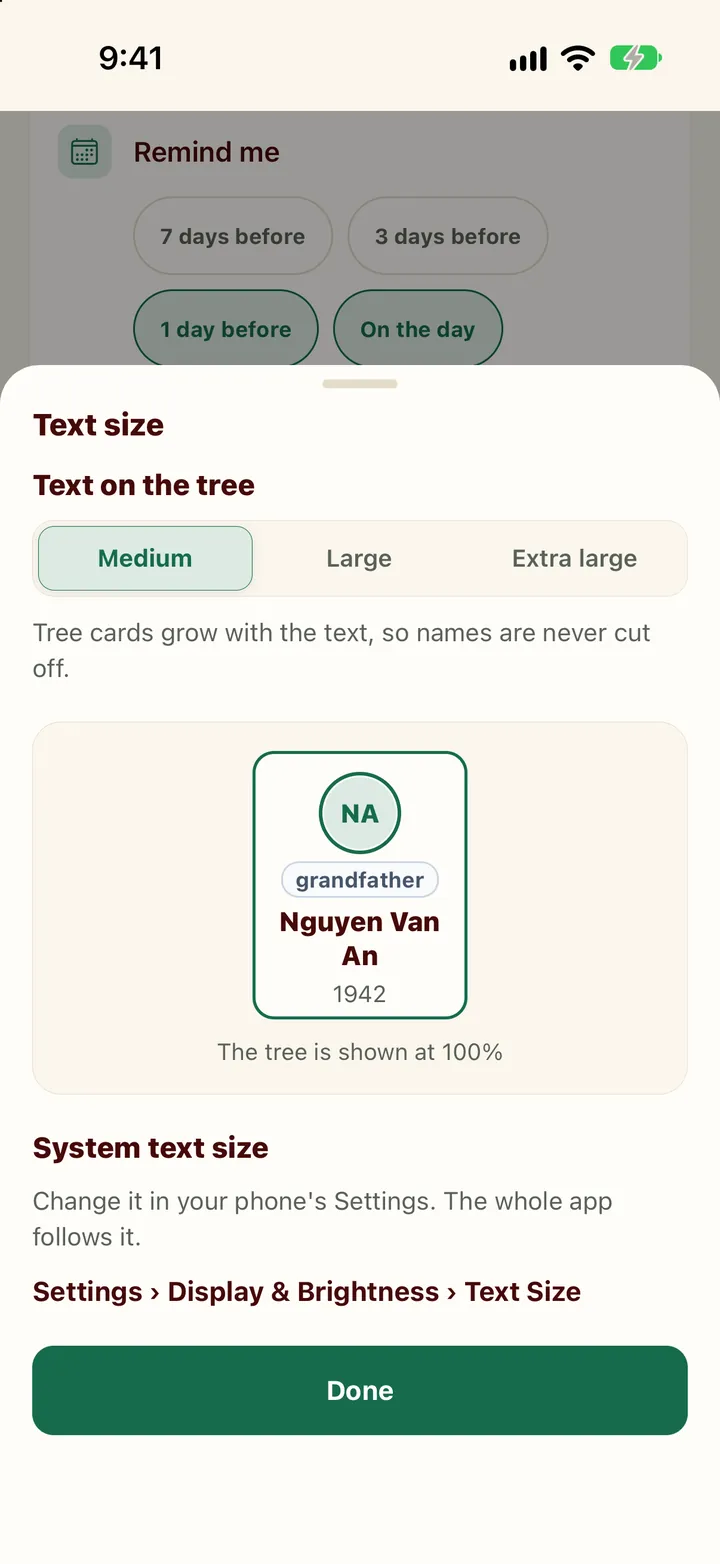
Text too small? You can make the text on the tree bigger, or the whole app.
On the phone
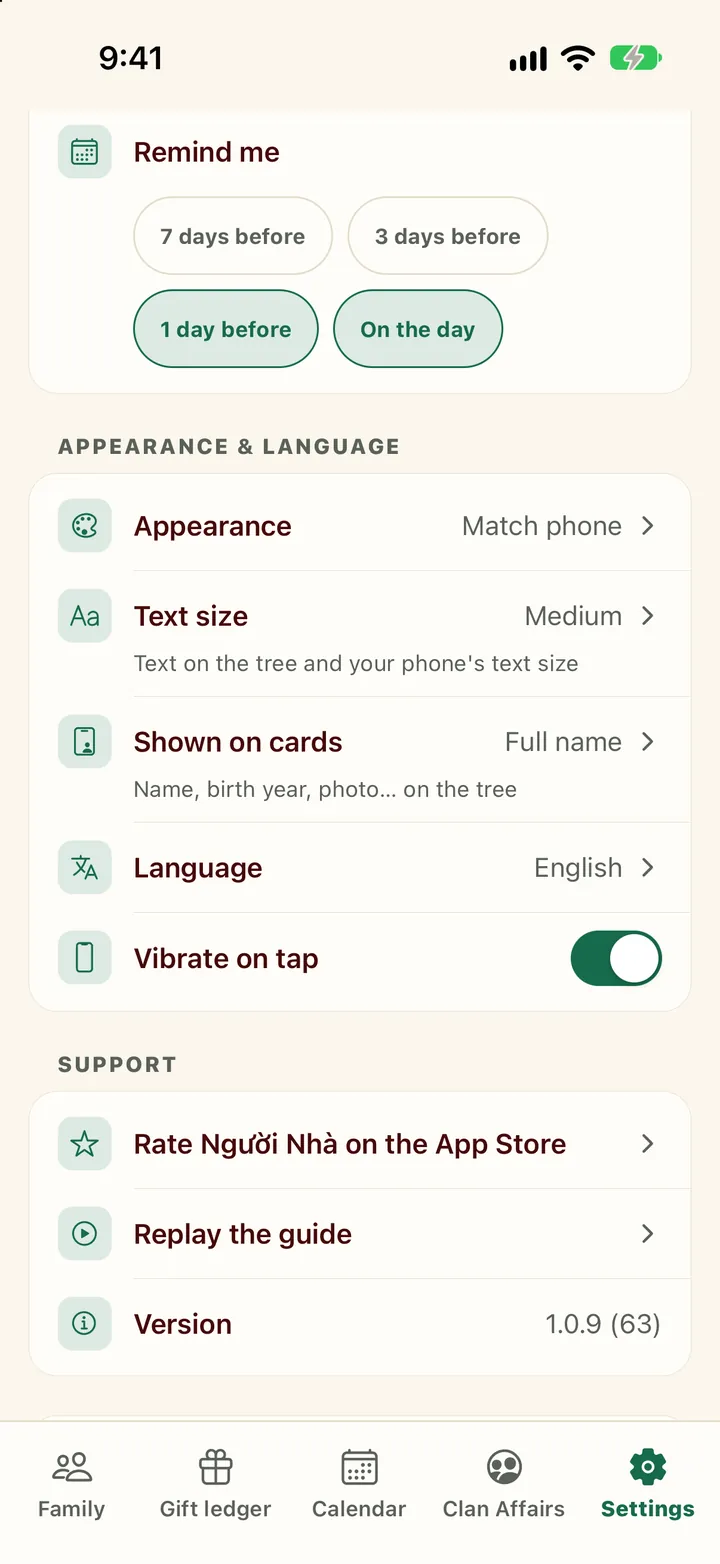
- Go to Settings → Text size.
- Under Text on the tree, choose Medium, Large or Extra large.
- For big text on every screen, raise your phone's text size. On iPhone: Settings → Display & Brightness → Text Size (the app has an Open Settings button). Người Nhà follows it.
On the web
Go to Settings → Text size → Medium, Large or Extra large. The whole page grows with the text. This is saved in the current browser only.
Colours and language
- Appearance: Match phone, Sơn Thủy (warm, traditional), Modern or Night (dark, easy on the eyes at night).
- Language: Tiếng Việt or English, in the app's and the web's Settings.
- Vibrate on tap: turn the light vibration on taps on or off.
19.Managing the family
For tree managers. Administration happens on the web: open app.nguoinha.com → More → Clan administration.
Roles
- Head of family — full control of the family.
- Admin — invite, approve, change settings.
- Record keeper — add and edit the tree and events.
- Member — view and suggest.
- Guest — view only.
What you can do there
- Needs your review: join requests and changes waiting for you.
- Invite: send invitations by Email, Link or QR code.
- Members: change roles, Pause access, Remove from family, Hand over Head of the family.
- Family tree: the family's name, home town, invite-only access.
- Family rules and Approving changes (for example birth or death dates, merging two profiles).
- Family traditions: religion and lunar/solar calendar for remembrance days (see Remembrance days).
On the phone
- Settings → Family administration: approve newcomers, manage members, invitations and family traditions.
- Settings → tap the tree's name to change its name and home town.
- Approve people who joined with a code: Clan Affairs → Invite the whole clan → Pending.
20.No internet, and updates
You can view and edit the tree without internet. When you're back online, the app syncs by itself.
Without internet
- The status line says Offline · using the saved copy — carry on as normal.
- Changes are kept on the phone (Saved on this device · will sync automatically) and sent when you're online.
- Don't sign out while changes are still waiting to sync — the app warns you if they are.
Updating the app
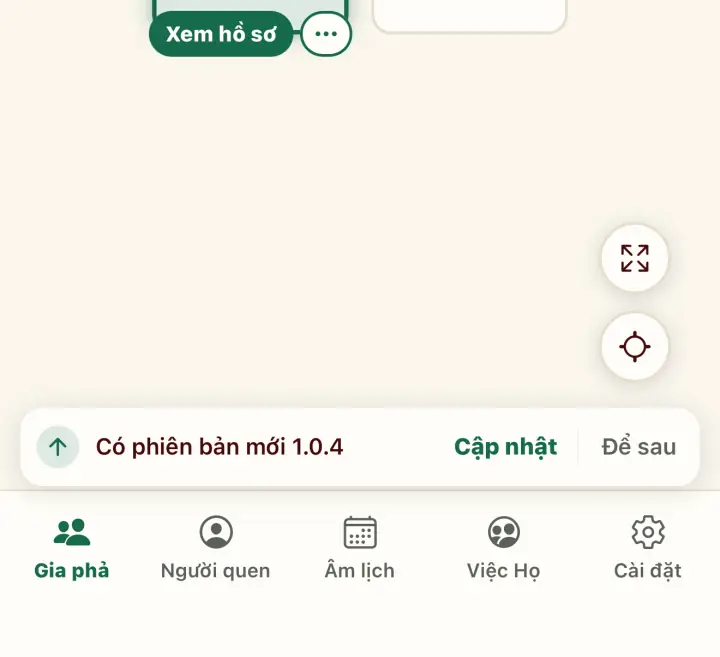
- When there's a new version, New version available appears at the bottom → tap Update (or Later).
- After updating, What's new lists the changes → tap Got it.
- On the web: when you see “A new version of Người Nhà is out”, click Reload.
Frequently asked questions
Someone in my family already made a tree. Should I start a new one?
No. Ask them for the invite link or meeting code and tap Join. That way the whole family shares one tree and nobody types things twice.
I belong to both my father's and my mother's family.
Tap the tree's name at the top of the Family tab to switch trees, or choose + Join another family / + New tree.
I deleted someone by mistake.
Tap Undo on the message that appears. If it's too late, add them again from a blank box.
The titles on the tree look wrong.
Check that Settings → I am is set to you, and that each person's gender is filled in.
How do I see the in-app tips again?
Go to Settings → Replay the guide.
Who can see my tree?
Only people invited to it. Trees are not public on the internet.
How do I print the tree as a large banner?
Open Design chart, pick a template, then under paper choose Large banner (cm) — a preset size or Custom up to 10 m. Click Download PDF and send the file to a banner print shop.
Does Người Nhà hold the clan fund's money?
No. The app only keeps the books: money goes straight into the fund's bank account via VietQR, and an entry joins the ledger once the treasurer confirms it.
Do wedding invitations on Người Nhà cost anything?
No, they are completely free, with no trial. Each account can make up to 10 invitations with up to 300 guests each, and the link expires 30 days after the wedding.
How do I send an invitation through Zalo?
Open the Gửi khách tab, tap Tạo link gửi, then Sao chép link and paste it into Zalo. For a personal invitation per friend, create a link per guest under Link riêng cho từng khách.
Do relatives need an invitation?
Usually not: relatives are told in person. The Báo họ hàng tab writes a ready-made message with the lunar date, the venue and the schedule of ceremonies, for you to paste into the family group.
Still stuck? See the Support page or email hotro@nguoinha.com — we usually reply within 1–2 working days. Never send passwords or sign-in codes by email.